Collect
Updated on:
March 2, 2026

Creating or editing a category

Go to:

Categories → Add new

You will see three tabs:

  • Info
  • Products
  • Limitations

Info tab

This is where you define the category itself.

  • Name: Enter the category name. You can add translations per language.
  • Description: Optional description. Useful for ecommerce or SEO.
  • SEO settings: Expand this section to add Meta title and Meta description
  • Parent category: This is how you create category trails (If left empty → the category becomes a top-level category. If selected → the category becomes a subcategory)
  • Code: Optional internal identifier.
  • Published: Enable this if the category should be available for distribution.
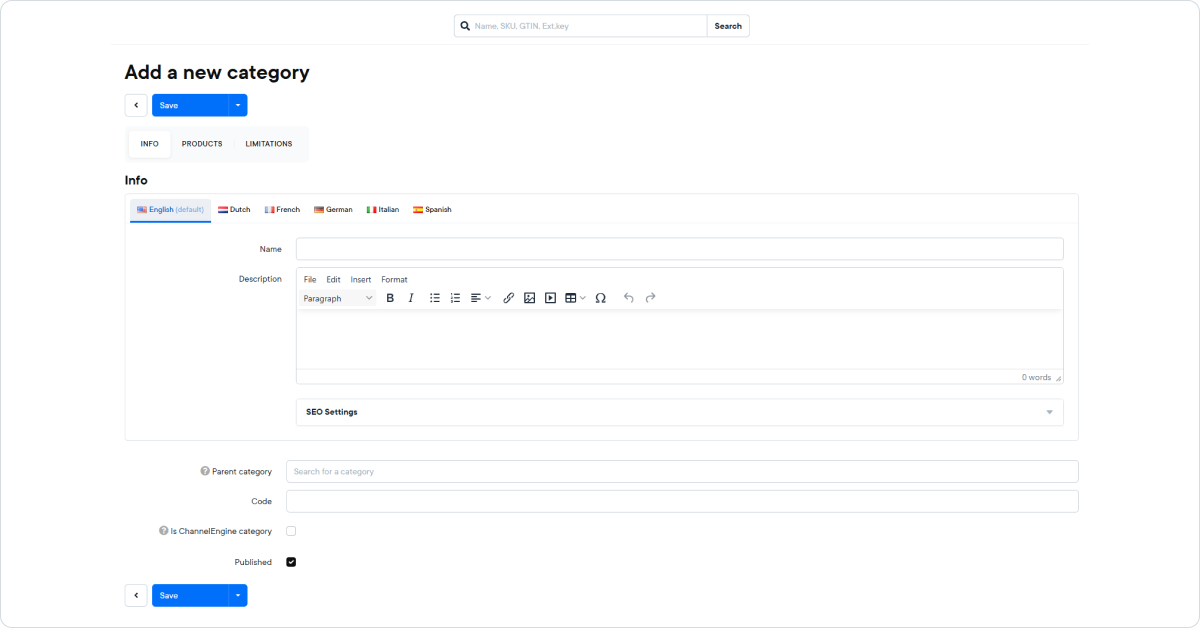
Save your changes after editing.

Products tab

Open a category and go to the Products tab.

Here you can manually assign products to the category.

Adding products

  1. Click Add a new product
  2. Select the product(s)
  3. Save the category

The selected products will now belong to this category.

You can:

  • See all linked products
  • Open a product directly via Edit
  • Remove products if needed

This gives you full control over product categorization.

Limitations tab

Open the Limitations tab inside a category.

Limited to store, when enabled:

  • The category is restricted to selected store(s)
  • It will not be available in other stores

This is useful when:

  • You manage multiple stores
  • Certain categories are market-specific
  • You need different category structures per store

Always save after making changes.

Part of:
© KatanaPIM
DisclaimerSitemap